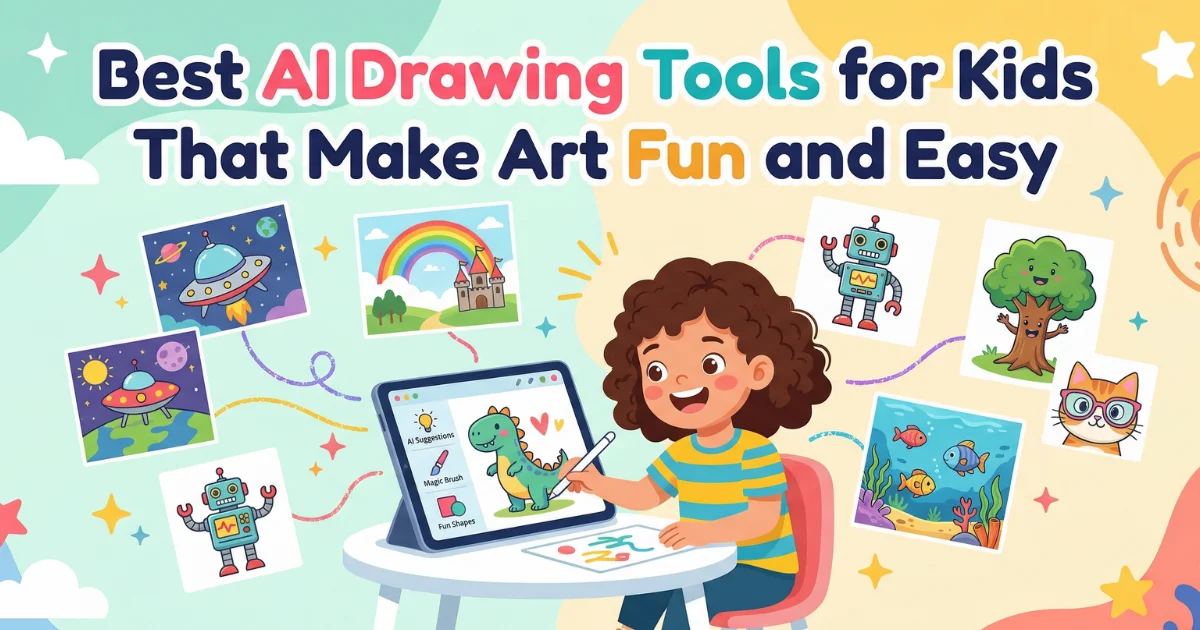
10 Best AI Drawing Tools for Kids (2024 Guide): Safe, Free, and Ranked by Age
Table of Contents
10 Best AI Drawing Tools for Kids (2024 Guide): Safe, Free, and Ranked by Age
Reading time: 7 min
Quick-Start Summary
Looking for the best AI drawing tools for kids? Here’s a snapshot:
| Tool | Age Range | Cost | Safety Rating |
|---|---|---|---|
| AutoDraw (Google) | 3–6 | Free | ★★★★★ |
| Tux Paint + AI Stamps | 3–6 | Free | ★★★★★ |
| Canva for Education | 7–11 | Free (Edu) | ★★★★☆ |
| Adobe Firefly (Family) | 7–11 | Free tier | ★★★★☆ |
| Craiyon | 7–11 | Free | ★★★☆☆ |
| NightCafe (Studio) | 12+ | Free tier | ★★★★☆ |
| Krita + AI Plugin | 12+ | Free | ★★★★★ |
| Pixlr AI | 12+ | Free tier | ★★★☆☆ |
| Leonardo AI | 12+ | Free tier | ★★★☆☆ |
| Picsart AI | 7–11 | Free tier | ★★★★☆ |
Parent tip: Every tool on this list was evaluated for content filters, data privacy, and age-appropriate interfaces. Scroll to the Parental Safety Scorecard for the full breakdown.
Introduction: The New Era of Digital Art
Remember the days when a box of crayons was the most exciting creative tool a child could own? Those days aren’t gone — they’ve simply evolved. Today, AI drawing tools for kids are transforming the way young learners explore color, shape, and imagination, turning rough doodles into polished illustrations with a single tap.
But here’s the concern every parent shares: Is it safe? And more importantly, is it actually good for my child’s creativity?
The answer, when you pick the right tools, is a resounding yes. Research from the Joan Ganz Cooney Center shows that children who engage with creative digital tools alongside traditional art develop stronger visual-spatial skills and show higher confidence in self-expression. The key is choosing free AI drawing apps for children that are age-appropriate, privacy-respecting, and genuinely educational.
This guide ranks the 10 best options by age group so you can skip the guesswork and find the perfect fit for your child tonight.
Best AI Drawing Tools for Early Learners (Ages 3–6)
Toddlers and pre-K kids don’t need complexity — they need delight. The tools below use AI behind the scenes to recognize scribbles, suggest shapes, and celebrate every stroke.
1. Google AutoDraw
AutoDraw is the gold standard for little hands. Your child scribbles something loosely resembling a cat, and the AI offers a polished cat icon to swap in. It teaches cause-and-effect while keeping the creative decision with the child.
- Why parents love it: No sign-up, no ads, runs in any browser.
- Learning boost: Shape recognition, fine motor skills, decision-making.
2. Tux Paint with AI-Assisted Stamps
Tux Paint has been a classroom favorite for over two decades, and newer versions integrate AI-curated stamp libraries that respond to what a child is already drawing. It’s completely offline-capable, making it one of the safest AI art platforms for students.
- Why parents love it: Open-source, no internet required, no data collection.
- Learning boost: Color theory basics, sequencing, spatial awareness.
3. Picsart Kids Mode
Picsart’s junior-facing mode wraps its AI background remover and sticker generator in a colorful, simplified interface. Kids can photograph a toy, remove the background, and drop it into a drawn scene — bridging physical and digital play.
- Why parents love it: Parental controls built in, content filters active by default.
- Learning boost: Mixed-media thinking, storytelling through collage.
Creative AI Suites for Elementary Students (Ages 7–11)
By age seven, kids are ready for more intentional creation. They want to direct the AI, not just react to suggestions. These tools give them that power while keeping guardrails firmly in place.
4. Canva for Education
Canva’s education tier gives students access to a curated AI image generator with strict content filters. Children can type a prompt like “a friendly dragon reading a book” and receive several style options — watercolor, cartoon, 3D — to insert into posters, presentations, or comic strips.
- Best for: School projects, visual storytelling, collaborative group work.
- Safety note: Teacher-managed accounts with full content moderation.
5. Adobe Firefly (Family Plan)
Adobe’s generative AI model was trained exclusively on licensed and public domain imagery, which means the output is ethically sourced. The family plan lets parents set content restrictions while kids explore style transfer, text-to-image generation, and color palette tools.
- Best for: Kids interested in design, typography, and brand-style thinking.
- Safety note: Adobe’s Content Authenticity Initiative watermarks all AI output.
6. Craiyon (formerly DALL·E Mini)
Craiyon is the scrappy, free AI drawing app for children who just want to experiment wildly. Type anything, get nine image variations, and laugh at the weird ones. It’s less polished than Firefly, but the low-stakes environment encourages fearless experimentation.
- Best for: Creative brainstorming, humor-driven art, rapid prototyping of ideas.
- Safety note: Moderate content filter; best used with a parent nearby.
Advanced AI Illustration for Teens (Ages 12+)
Teenagers crave real tools, not kiddie wrappers. The options below treat young artists seriously while still offering safe AI art for students who are ready to build portfolios and develop genuine skills.
7. Krita with AI Plugins
Krita is a free, professional-grade digital painting app. With community AI plugins, teens can use intelligent brush prediction, automatic coloring of line art, and style-transfer effects — all running locally on the device with zero cloud data exposure.
- Skill ceiling: Professional. Many indie game artists use Krita daily.
- Privacy: Fully offline AI processing. No account required.
8. NightCafe Studio
NightCafe’s credit-based free tier gives teens access to Stable Diffusion and other models through a guided, community-moderated interface. Daily free credits encourage intentional prompt crafting rather than endless generation.
- Skill ceiling: Intermediate to advanced. Teaches prompt engineering.
- Privacy: Account required; content moderation active.
9. Leonardo AI
Leonardo shines for teens interested in game design and concept art. Its fine-tuning feature lets young artists train a model on their own sketches and generate variations — an introduction to machine learning concepts through art.
- Skill ceiling: Advanced. Introduces model training basics.
- Privacy: Free tier with account; generated images are public by default (toggle to private).
10. Pixlr AI Suite
Pixlr wraps AI-powered background removal, object generation, and style transfer into a Photoshop-like browser interface. It’s the closest thing to a professional editing suite that’s entirely free to start.
- Skill ceiling: Intermediate. Great bridge to Adobe products.
- Privacy: Account required; free tier is ad-supported.
The Parental Safety Scorecard
Not all AI art tools handle child safety equally. Here’s how each tool scores across the metrics that matter most:
| Tool | Content Filter | Data Privacy | No Account Needed | Ad-Free | COPPA Aligned |
|---|---|---|---|---|---|
| AutoDraw | ✅ | ✅ | ✅ | ✅ | ✅ |
| Tux Paint | ✅ | ✅ | ✅ | ✅ | ✅ |
| Picsart Kids | ✅ | ⚠️ | ❌ | ❌ | ✅ |
| Canva Edu | ✅ | ✅ | ❌ | ✅ | ✅ |
| Adobe Firefly | ✅ | ✅ | ❌ | ✅ | ⚠️ |
| Craiyon | ⚠️ | ⚠️ | ✅ | ❌ | ❌ |
| Krita | ✅ | ✅ | ✅ | ✅ | ✅ |
| NightCafe | ✅ | ⚠️ | ❌ | ❌ | ❌ |
| Leonardo AI | ⚠️ | ⚠️ | ❌ | ❌ | ❌ |
| Pixlr | ⚠️ | ⚠️ | ❌ | ❌ | ❌ |
Key: ✅ = Strong | ⚠️ = Partial/conditional | ❌ = Missing or weak
Bottom line: For children under 10, stick with AutoDraw, Tux Paint, Canva Education, or Krita. These four offer the strongest combination of creativity and safety.
Bonus: 5 “Safe-Start” AI Prompts for Kids
If your child is using a text-to-image tool for the first time, these prompts are a great launchpad:
- “A happy turtle wearing a top hat, watercolor style” — Simple, joyful, teaches style keywords.
- “My bedroom but everything is made of candy” — Encourages imaginative world-building.
- “A robot and a kitten planting a garden together” — Introduces character interaction.
- “A map of a magical island with a volcano and a library” — Develops spatial and narrative thinking.
- “Self-portrait as a superhero, comic book style” — Builds identity and self-expression.
Pro tip: After generating an image, ask your child “What would you change?” This shifts them from passive consumer to active creator — exactly the mindset we want to cultivate.
FAQ: Common Questions About AI Art for Children
Is AI art “cheating” or does it replace real drawing skills? Not at all. Think of AI drawing tools as a new medium, like switching from pencil to paint. Studies show that children who use digital creative tools alongside traditional methods develop complementary skills rather than replacing one with another. The best approach is to blend both.
Are free AI drawing apps for children actually free, or is there a catch? Most tools on this list offer a genuinely free tier. The “catch” is usually ads (Craiyon, Pixlr) or limited daily generations (NightCafe, Leonardo). Canva Education and Tux Paint are completely free with no hidden costs.
What age should a child start using AI art tools? Children as young as three can enjoy tools like AutoDraw with parental guidance. The key is matching complexity to developmental stage — which is exactly why this guide is organized by age group.
How do I talk to my child about AI-generated images vs. human-made art? Frame it as collaboration. Say something like, “You told the computer what to make, and it helped — just like how an architect draws a plan and builders bring it to life.” This teaches kids to see AI as a tool, not a replacement for human creativity.
Can AI art tools be used in schools? Absolutely. Canva for Education and Adobe Firefly are already integrated into thousands of classrooms. Look for tools that offer teacher dashboards, COPPA compliance, and content moderation — all markers of safe AI art for students.
Start Creating Tonight
The best AI drawing tools for kids aren’t just digital toys — they’re doorways into design thinking, storytelling, and creative problem-solving. Whether your child is three or thirteen, there’s a tool on this list that meets them exactly where they are.
Here’s your next step: Pick one tool from your child’s age group, sit down together for 15 minutes, and try one of the safe-start prompts above. You might be surprised by what they create — and even more surprised by the conversation it sparks.
Found this guide helpful? Share it with another parent who’s navigating the world of kids and AI creativity.